Copying a Test Code
There are two copy features available in Rules Engine The graphical CLS interface for configuring the LIMS, specifically the Control Tables. for tests. The
copy feature creates a direct copy of the original test with any changes entered in the pop-up. The copy pattern feature creates a copy of the
original test and also creates new procedures, analyte lists, and batch
rules if the codes for these items match the source test code.
The graphical CLS interface for configuring the LIMS, specifically the Control Tables. for tests. The
copy feature creates a direct copy of the original test with any changes entered in the pop-up. The copy pattern feature creates a copy of the
original test and also creates new procedures, analyte lists, and batch
rules if the codes for these items match the source test code.
For example: if test 'ABC001' has a task that uses procedure 'ABC001',
analyst list 'XYZ987', and batch rule 'ABC001', the test pattern is copied
to new test 'ABC002' and a new procedure and batch rule with code 'ABC002'
will also be created. A new analyte list is not created because the list
code did not match the test code.
To copy a test, complete the following steps:
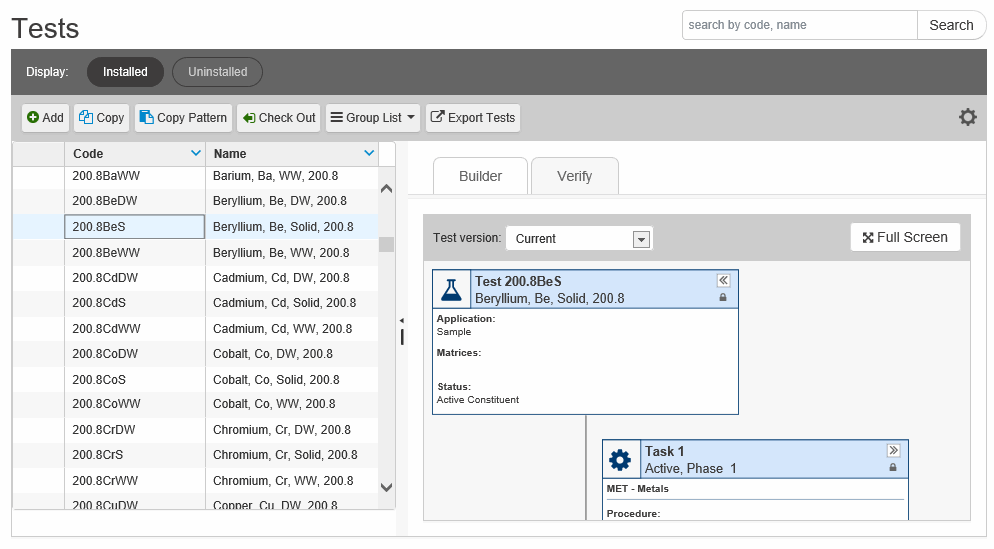
- Select Administration > Rules Engine from the main menu.
- Click Tests on the left side
of the page.

- Select the test you want to copy. Click Copy
Pattern if you have established conventions for naming your
test code, analytical procedure code, analyte list code, and batch
rules similarly; otherwise, click Copy.
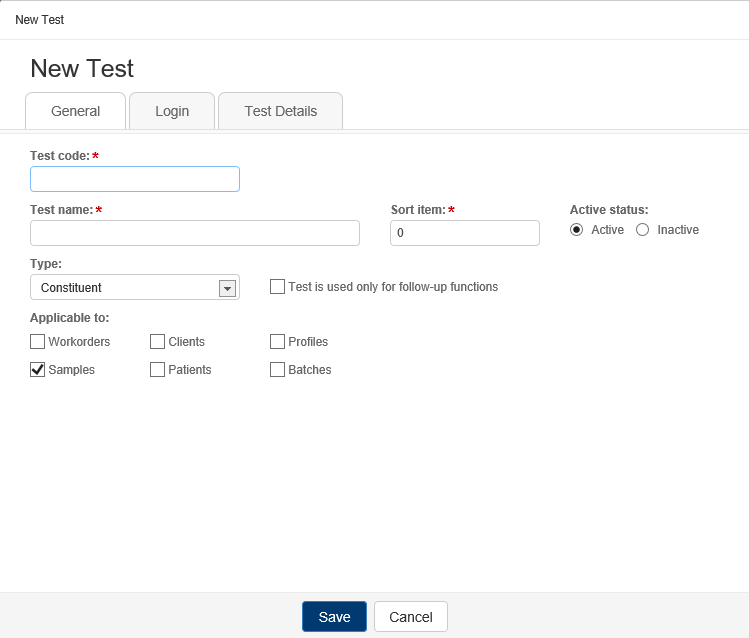
- In the New Test pop-up, enter a unique Test code and edit the Test name to identify the new test.
Edit or enter information in the fields on the General, Login The initial step in the life of a sample where the following information is recorded in the CLS database: sample identification, customer information, incoming containers, analysis codes, and turnaround time. Login specifically indicates that the sample has physically arrived at the laboratory and testing can begin (or the sample is to be cancelled because of a bad condition or other discrepancy)., and Test Details tabs as needed.
- Click Done.
-
When the test is ready to be installed, select the row containing the test on the Tests grid page and click Check In in the grid header.
That test will be available in the grid when you click the Installed quick filter button.
See also: